| |
Section 1: How to install
The installation is very easy. It's a step-by-step process as written below:
A) Upload files to your server :
-
Download ‘news.zip' to your local machine.
- Unzip the file
- Create a folder within ‘public_html' on your server.
- Upload all the folders and files within ‘news_script' to this new folder i.e.
- Change the permission for following to ‘777'
I.
‘config.inc.php' within ‘..\include\'
II.
The new folder to which all files were uploaded.
B) Create a database and user in MySQL Database
- Open your cPanel (Control Panel) to access MySQL Database
- Create a database
- Create a User by providing username and password
- Link the database with the user
C)
Install the script
-
Now open following link in browser:
‘http://yourdomainname.com/newfolder/install/install.php'
where,
yourdomainname.com, would be your domain name
newfolder: this can be any foldername, where you would have uploaded all the files.
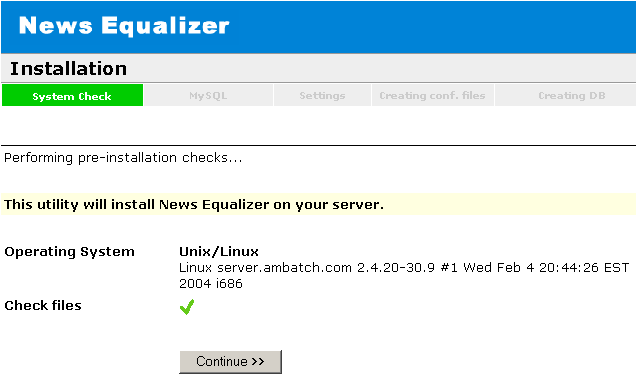
You will see the following screen.
-
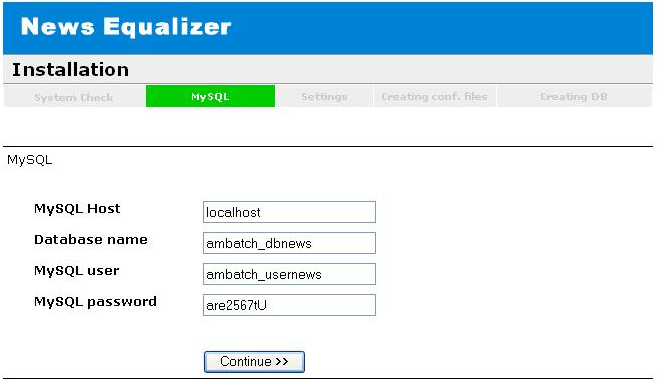
Click on Continue to reach the MySQL screen.
-
Provide all the inputs for MySQL Database
I. MySQL Host: This can be the IP address of the Database server or ‘localhost'
II. Database Name: The name of the database created in step B.
III. User Name: The name of the user created and linked with the database.
IV Password: Password of the user linked with the database.
-
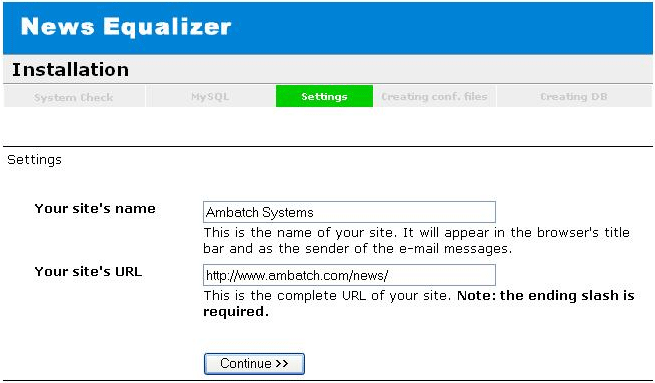
Click on ‘Continue' to reach Site Settings.
-
Provide following details (as shown in below image):
I. Your Site's Name: This can be any text representing your site
II. Your Site's URL : This would be the complete URL
with the folder where you have uploaded all the files along with the backslash in the last e.g.
http://www.yourdomainname.com/foldername/
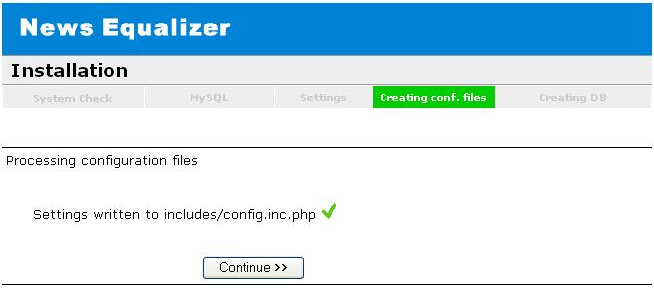
- Again click on ‘Continue' to create the Configuration File.
- Following message would be displayed if the configuration file gets created successfully:
-
Click on ‘Continue'
-
You will see following message if the database tables get created successfully.
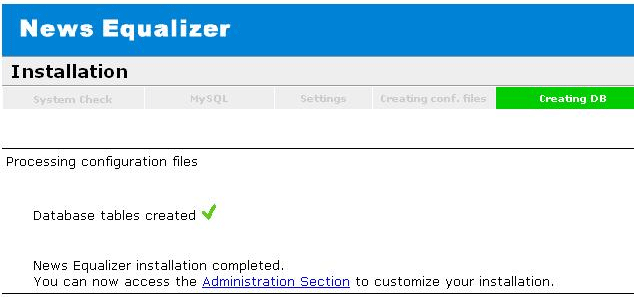
- To run the application/script you need to click on ‘Administration Section' or enter following link in the browser:
http://www.yourdomainname.com/newfolder/dataadmin/index.php
where,
yourdomainname.com : this would be your domain name
newfolder: the name of the newly created folder, where you would have uploaded all the files and folder.
The Username and Password for login is ‘admin'
-
Also, remove the ‘install' folder from the server after successful installation.
-
Change the permissions to ‘644' for the new folder to which all files were uploaded.
|
| |
Section 2: Understanding the Application |
| |
|
This application helps in displaying latest news as per the user-defined categories and that too having specified keywords .
|
|
A) How to reach the Administrative Section of the application?
You need to open the link for the application, where you would have uploaded the script on your server, in the browser. The link would be in the format:
http://www.yourdomainname.com/newfolder/dataadmin/
Where, newfolder: the folder where you have uploaded the files.
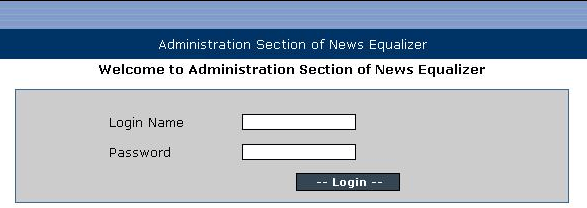
Provide the Login Name and Password to login the application.
The default login details are:
Login Name: admin
Password: admin
After successful login, you will see following screen:
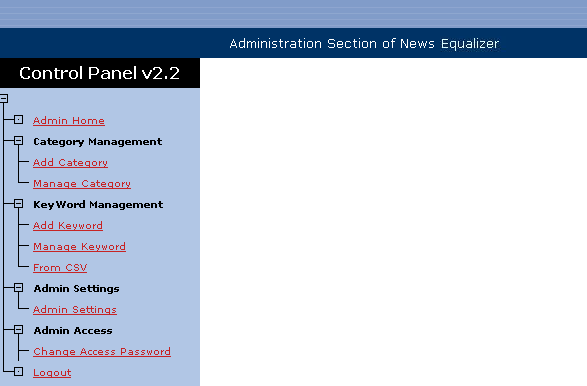
B) Category Management
Here you can create and manage categories. The category-name depends on your wish. This is basically for categorize the news contents so that only the relevant news get displayed.
There are two sub-section of this:
| |
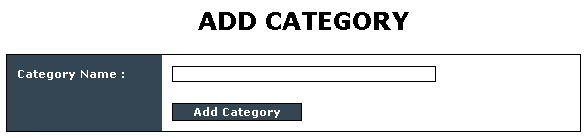
- Add Category : Any text can be given as the Category name. Then click on ‘Add Category' to add it for further use.
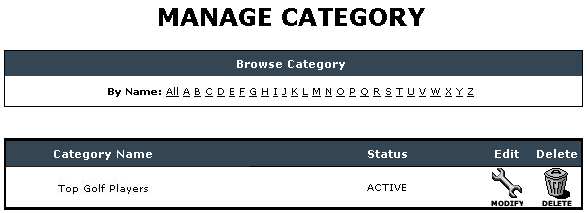
- Manage Category : This deals with the management of categories. All the created Categories are listed here. Facility for editing/deleting and even changing the status of the category is provided. Only the categories with ‘Active' Status are displayed. Option for searching category is also provided.
|
|
|
C) Keyword Management
When you want some particular term to be always there in the news content, then this section comes into picture.
| |
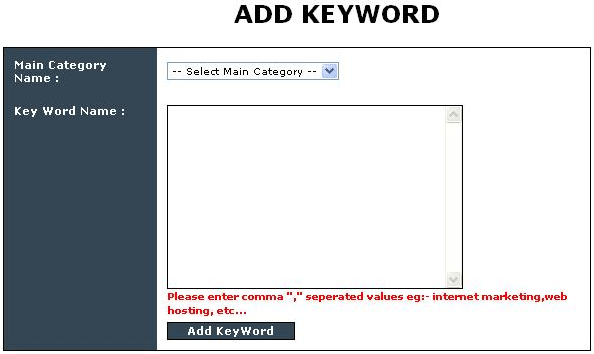
1. Add Keyword : Comma delimited keywords can be added for a category. This will help in retrieving only those news contents which would have those keywords.
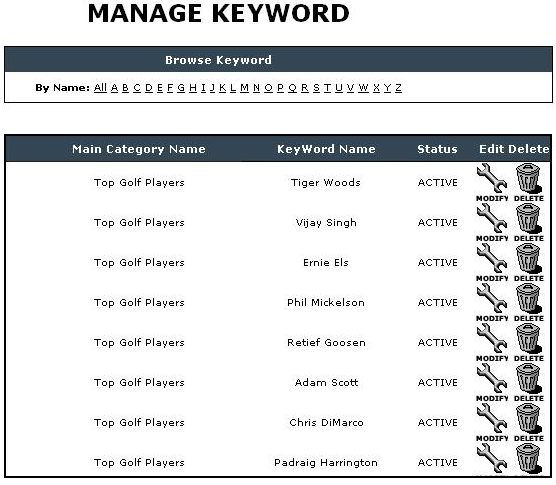
2. Manage Keyword : This deals with the management of keywords. All the keywords with the associated Categories are listed here. Facility for editing/deleting and even changing the status of the keyword is provided. Only the keywords with ‘Active' Status are used. Option for searching keyword is also provided.
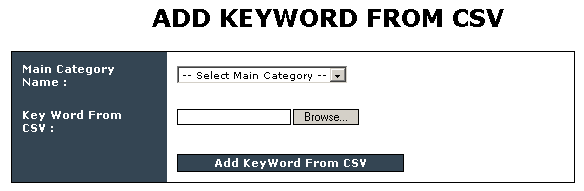
3. From CSV:Keywords can be imported from a CSV file also. This is helpful when you want to add large number of keywords.
|
D) Admin Settings:
The code shown here is used for displaying the contents on the main page. This main-page (webpage) can be viewed at following location:
http://www.yourdomainname.com/newfolder/
Where, newfolder: the folder where you have uploaded the files.
The code within the text-fields can be modified as per the user. He can add/modify code here for many different purposes like:
| |
• Generate commission by adding ‘Affiliate Ad Codes' here
• Get the visitor's information by adding email-subscription box
• Making the script more unique by adding user-defined contents. |
After any kind of modifications, click on ‘Update Admin Settings' to reflect the changes on the web page.
Important : Please, don't make any changes to ‘RSS URL'
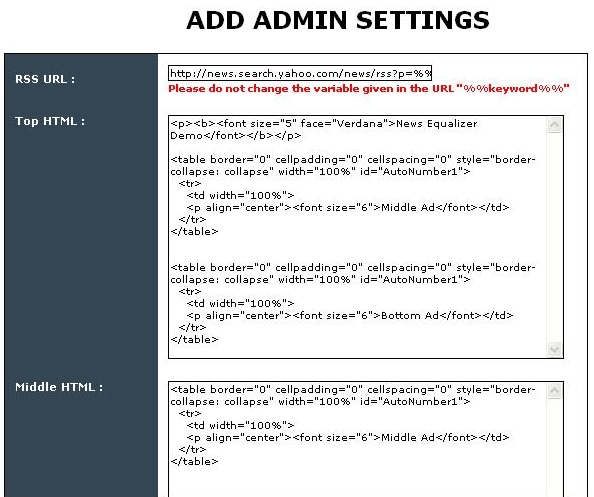
The code is divided into three parts as explained below:
| |
• Top HTML: The code added here would be displayed at the top of each page including the main-page and every keyword page.
• Middle HTML: The code added here would be displayed just below of the ‘headline news' in the main-page, and in the middle of the news-links in each keyword page.
• Bottom HTML: The code added here would be displayed at the bottom of each page including the main-page. |
E) Admin Access:
1. Change Access Password : You can change your admin password at any point of time from here.
2. Logout : Clicking on this will log you out from the admin.
|
NEED HELP IN INSTALLING AND USING NEWS EQUALIZER?
If you require help setting up or using News
Equalizer at any time, you can access the online help center 24 hours a day at: http://helpdesk.ambatch.com
If you need any further assistance, you can access our Technical Support Team at: http://helpdesk.ambatch.com
I hope you enjoy this exciting new software!
Best of luck!
Copyright: The Internet Marketing Profits Center, Inc. |
|
